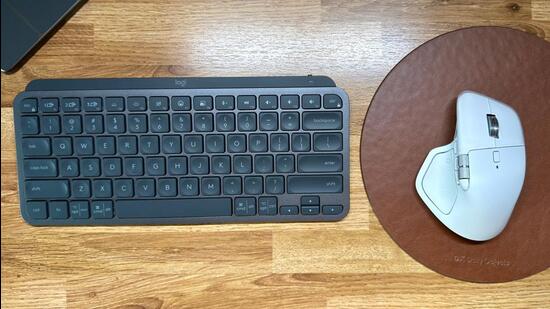
There is always a valid question that needs answering — what are the best keyboard and mice that’ll work with a Mac? A rupee for every time I’ve been asked this, and I’d probably have about ₹168 in my wallet. The default choice, and any recommendation would be, is the combination of an Apple Magic Keyboard and an Apple Magic Mouse. Purely for that dual advantage of seamless integration and aesthetics. Logitech, which still holds close the Swiss aesthetic troika of function, precision and minimalist clarity, has kept things consistently relevant with peripherals for decades; case in point, these MX series alternatives for anyone who’d prefer a path less walked.
The Logitech MX Keys Mini for Mac and the MX Master 4 for Mac mouse take different approaches to Apple’s, albeit for the same destination of productivity, and you may just find the right balance and combination. While Apple’s own Magic Keyboard lineup itself has two similar products — the Magic Keyboard with USB-C ( ₹9,500) and the Magic Keyboard with Touch ID for Mac models with Apple silicon ( ₹14,500) — the Logitech MX Keys Mini for Mac can be had for around ₹9,295. The Apple Magic Mouse with USB-C ( ₹9,500) finds an alternative in the MX Master 4 for Mac mouse, albeit more expensive at ₹12,995. An observation about the pricing is that you can often find discounts and cash back offers at online and offline retailers for Logitech peripherals, which can substantially reduce the final bill.
Mind you, the “for Mac” branding doesn’t mean they’ll only work with Mac devices, but instead that they’re optimised for macOS specifically. The MX Keys Mini for instance, has a layout quite similar to the Apple Magic Keyboard layout. That is fundamentally different, both architecturally and functionally, from a keyboard designed for a Windows PC. The differences are the Control, Option, Command, and Function keys. That said, I don’t really understand why the Command key is smaller than what a regular Mac user would expect.
We must analyse the Logitech MX Keys Mini for Mac keyboard first, and there’s a clear difference in mechanism and typing approach. Apple’s take a shallower key travel and therefore a sharper as well as potentially quicker typing experience, while Logitech goes with a bit more travel, a softer but still assured response. There are fans for either approach, and good to have that variety — I prefer the former, but it doesn’t take much to get used to the latter either. A profound curvature design on each key does its bit to help the fingers land better, something you may miss on flatter key designs.
There is a heft to the Logitech MX Keys Mini for Mac keyboard and that construction is the most visible indicator of its robustness. This is high quality aluminium with no flex no matter how hard you try (feels at home, next to a Mac Studio), and that isn’t an easy feat to achieve for anyone other than Apple. If you prefer the keyboard at a slight angle (far end, slightly raised) as I do, the built in bar on the underside of the keyboard does that just perfectly. The backlighting looks gorgeously on point when you have it enabled, and the black keys blend nicely into the metal body when it’s turned off.
One could find some argument with Logitech is using a similar scissor-actuated membrane foundations for a keyboard that costs as much as this, as it does on other MX series keyboards. But instead of those specifics, it is important to focus on a real-world mix of nicely optimised key travel, consistent responsiveness and a layout that’s absolutely perfect for the fingers to get used to.
Logitech says for a full battery cycle, the MX Keys Mini for Mac keyboard will last between 10 days and 5 months, depending on backlight usage. With the backlight off, five consecutive days of usage for about 10 hours each day, dipped the battery from 100% to 99%. Difficult to disagree with Logitech’s claimed estimates.
Chances are, the Logitech MX Master 4 for Mac (much like its other version, and previous generations) mouse will require a bit of getting used to its higher rising curvaceous design. Much more so than typical mice peripherals, something you’ll realise if you switch back to any other mouse, after a few days. The aside from this is, the MX Master 4 is also heavier still than the MX Master 3s, and that may be a bit concerning for some users.
There are some build quality differences, with a lot of the silicone inserts being replaced with matte plastics, and while opinions will vary, both versions feel equally premium, albeit with different materials in play. The difference between the MX Master 4 for Mac and the regular MX Master 4 mouse is that the former is Bluetooth only whereas the latter will include a USB-C dongle for wider compatibility across Windows PCs. There are many changes with the internals, including a newer radio chip for more stable connectivity—that’ll be relevant in case you switch devices often.
The most noticeable addition is a really cool haptic engine, which certainly adds to the experience. The mouse, in a way, gets close to the Apple trackpad experience. The thumb pad, which now sits within reach of the right hand’s thumb as you use the MX Master 4 for Mac, can be set for gestures. For instance, I’d find this more relevant to swipe between different spaces on macOS. That said, it is time for Logitech to replicate the multi-touch that the Apple Magic Mouse does, because that convenience is addictive, and difficult to retrain to live without.
At this point, it is worth noting that this mouse isn’t at all meant for left-handed users. It’s been a while, and there hasn’t been a version of that.
The key to drawing full results on the potential of the MX Keys Mini and MX Master 4 combo (or even in standalone experiences) is the Logi Options+ app. Every key on the mouse for instance, is configurable. For the keyboard, a plethora of configurability too. You must spend some time setting up Smart Actions and getting the Action Ring on the MX Master 4 for Mac exactly as you want it. Logi Flow is particularly relevant if you have more than one Apple device working simultaneously — switch the mouse to control another computer by simply moving the cursor to the edge of the screen; and the same way to return to the first device. This also works with copy and paste across these devices, including for text, files and photos.
Flow right now works with macOS and Windows computing devices, and I feel extending support for iPadOS and Android on tablets would really make sense, because iPads and Android tablets tend to be second computing devices for many, and not another laptop alongside a desktop.